

Is all your PS5 showing being stuck on a scary black screen? Not to worry! With our quick cure for the dreaded PS5 black screen problem, we’ve got you covered. We’ll lead you through restoring your console’s display, from straightforward troubleshooting methods to potential system settings tweaks. Bid farewell to the shadows and get ready once more to lose yourself in the bright world of gaming. Let’s discuss and fix the PS5 black on-screen issue in more detail.

What to do with the PS5 Black Screen
If it occurs, you can take a few actions to fix a PS5 Black Screen. First, check your connections and ensure all your cords are firmly connected and adequately plugged in. Additionally, executing a factory reset, verifying HDMI compatibility, or updating the system software can be helpful.
Also Read: How to Reset PS5 Without Controller in 2026 [Guide]
If all else fails, it is advised to contact Sony support for additional guidance. Don’t let the blank black screen happen to keep you from having a great time playing!
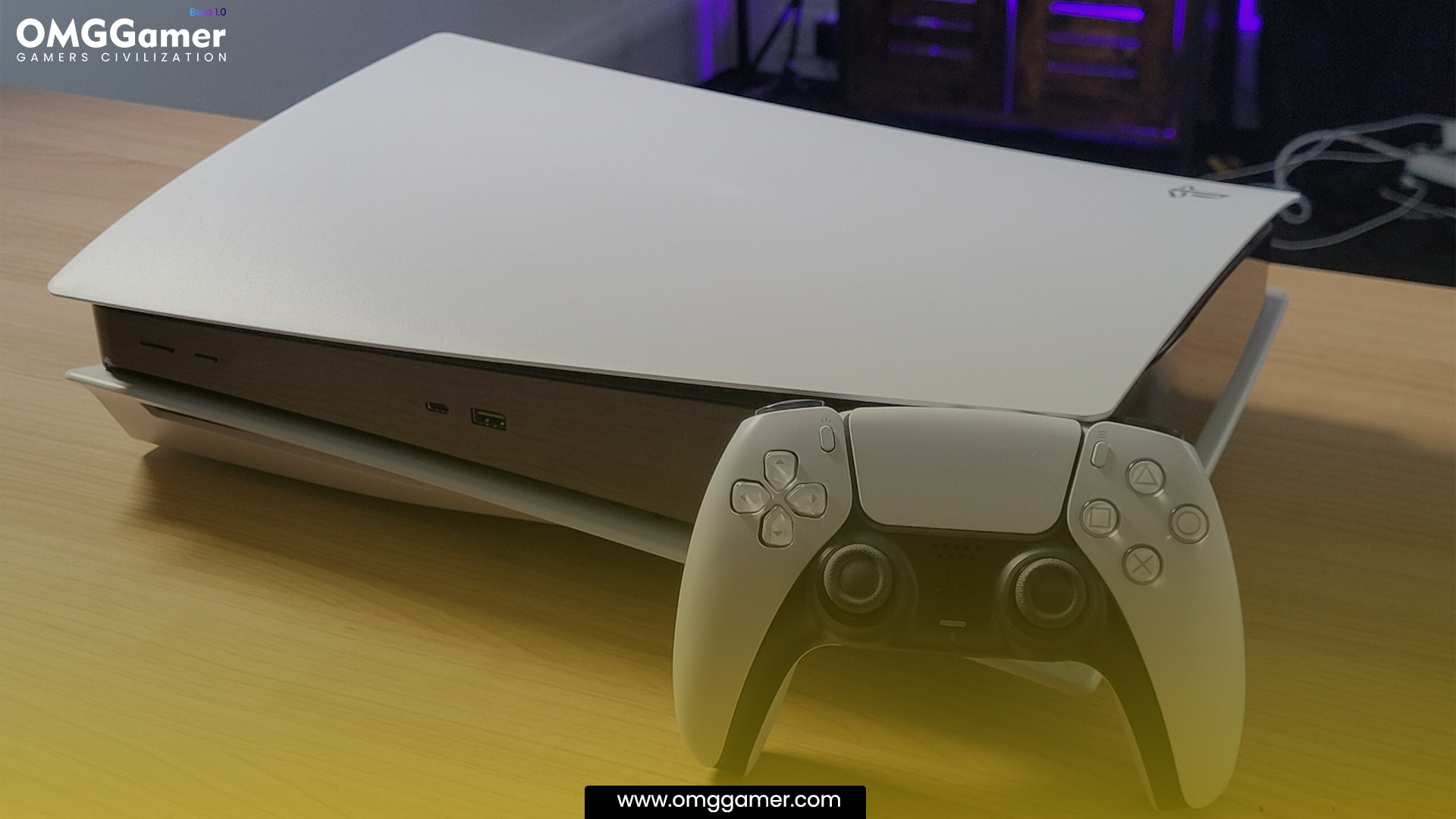
How to Fix PS5 Black Screen in 2026
If it occurs, you can take a few actions to fix a PS5 Black Screen. First, check your connections and ensure all your cords are firmly plugged in. Still, if it does not work, try using the following solutions.
| How to Fix PS5 Black Screen |
|---|
| Check the TV or Monitor Power Cable |
| Check the HDMI Connection |
| Shut Down and Restart PS5 |
| Force PS5 to Troubleshoot and Fix Itself |
| Boot and Fix PS5 in Safe Mode |
| Change PS5 Video Resolution |
| Restore Default Settings in Safe Mode |
| Rebuild the PS5 Database |
| Contact Sony Support |
Check the TV or Monitor Power Cable
Follow these steps:
- Step 1: Ensure the TV or monitor is disconnected from the power source and turned off.
- Step 2: Look for any obvious evidence of damage on the power cord, such as deteriorated wires or exposed insulation.
- Step 3: Firmly insert one cable end into the TV or monitor’s power input.
- Step 4:Connect the cable’s other end to a working power outlet.
- Step 5: Check if the TV or monitor powers up properly by turning it on.
- Step 6: To rule out cable malfunction as the culprit, try using a new power cord if the gadget is still unresponsive.
Check the HDMI Connection
Use these procedures to test the HDMI connection:
- Step 1: Make sure the HDMI cable is firmly plugged in, as well as the attached devices.
- Step 2: Ensure the HDMI input source is set to the appropriate one on the TV or monitor.
- Step 3: Turn on any connected devices, such as a gaming console or laptop.
- Step 4: Check to make sure the HDMI cable is not torn or broken.
- Step 5: A different HDMI port on the TV or monitor works better for the HDMI connection.
- Step 6: To rule out any problems, test the HDMI cable with another device if one is available.
- Step 7: If required, change the linked device’s display settings.
- Step 8: Consult the user guide or contact technical help if the problem continues.
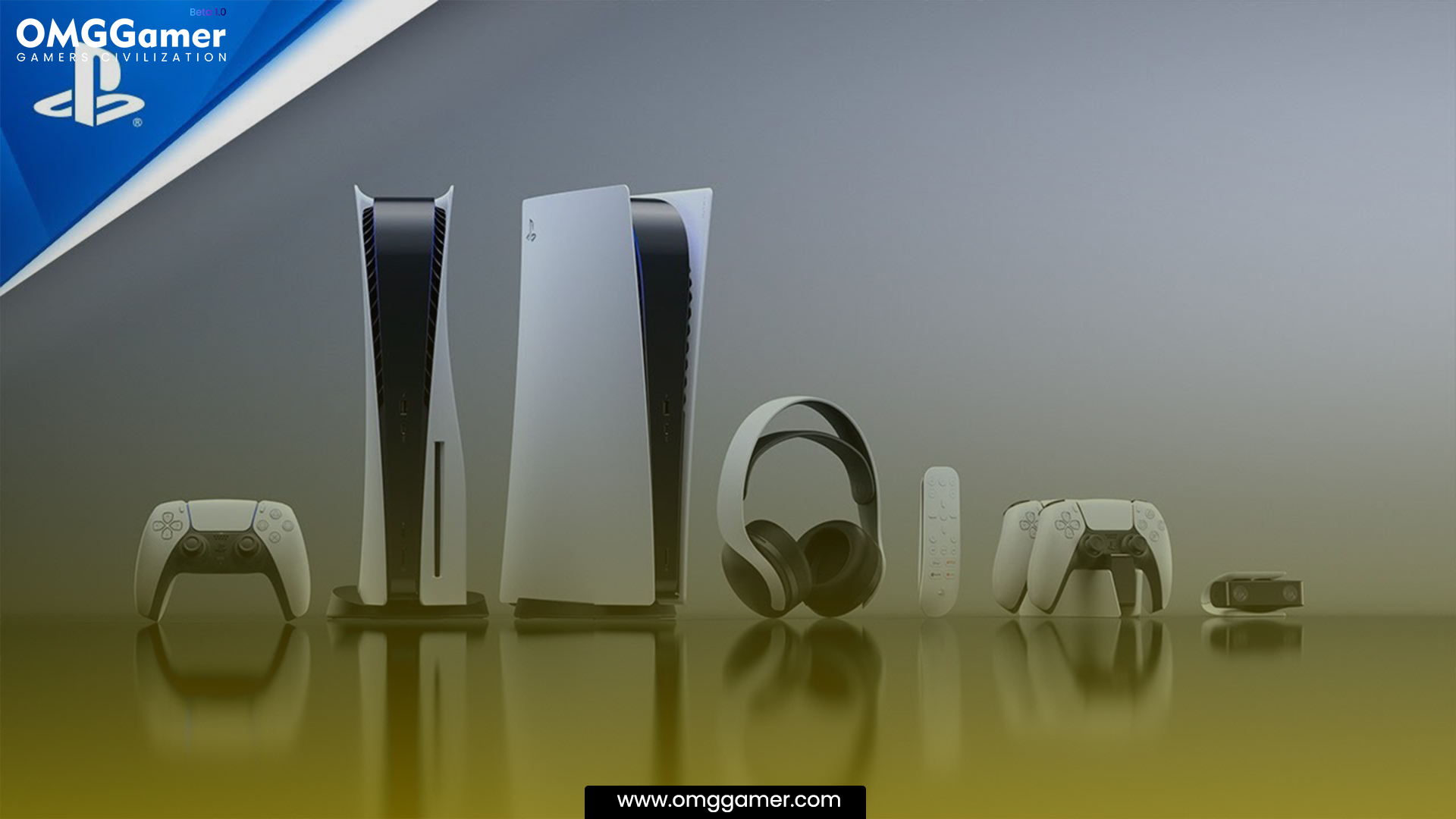
Shut Down and Restart PS5
You can use these steps to shut down and restart your PS5 console:
How to turn off the PS5:
- Step 1: On your controller, hold down the PS button while doing so. The control panel will thereafter appear as a result.
- Step 2:The power options are located by moving the cursor to the right of the control center.
- Step 3: The “Power” icon, which resembles a circle with a vertical line in the center, should be chosen.
- Step 4: Choose “Turn Off PS5” from the power settings menu.
- Step 5: A notice asking for confirmation will appear. To turn off your console, select “Turn Off”.
Recommended: 15 Best PS5 Third-Person Games in 2026 [Gamer’s Choice]
To restart the PS5:
- Step 1: To open the control center, press and hold the PS button on your controller.
- Step 2: The power options are located by moving the cursor to the right of the control center.
- Step 3: A “Power” icon should be chosen.
- Step 4: Select “Restart PS5” from the power choices menu.
- Step 5: You will verify your choice. To start the restart procedure, choose “Restart”.
Force PS5 to Troubleshoot and Fix Itself
Try these troubleshooting techniques to resolve PS5 black screen issues:
- Step 1: First, hold down the console’s power button for 10 seconds to force a hard reset.
- Step 2: In the event that that doesn’t work, disconnect the console from the power supply, give it some time to cool off, then plug it back in.
- Step 3: A different HDMI connector on your TV or monitor can also connect the video output to the console.
- Step 4: Consult the PlayStation support page or contact Sony if the tv screen issue continues.
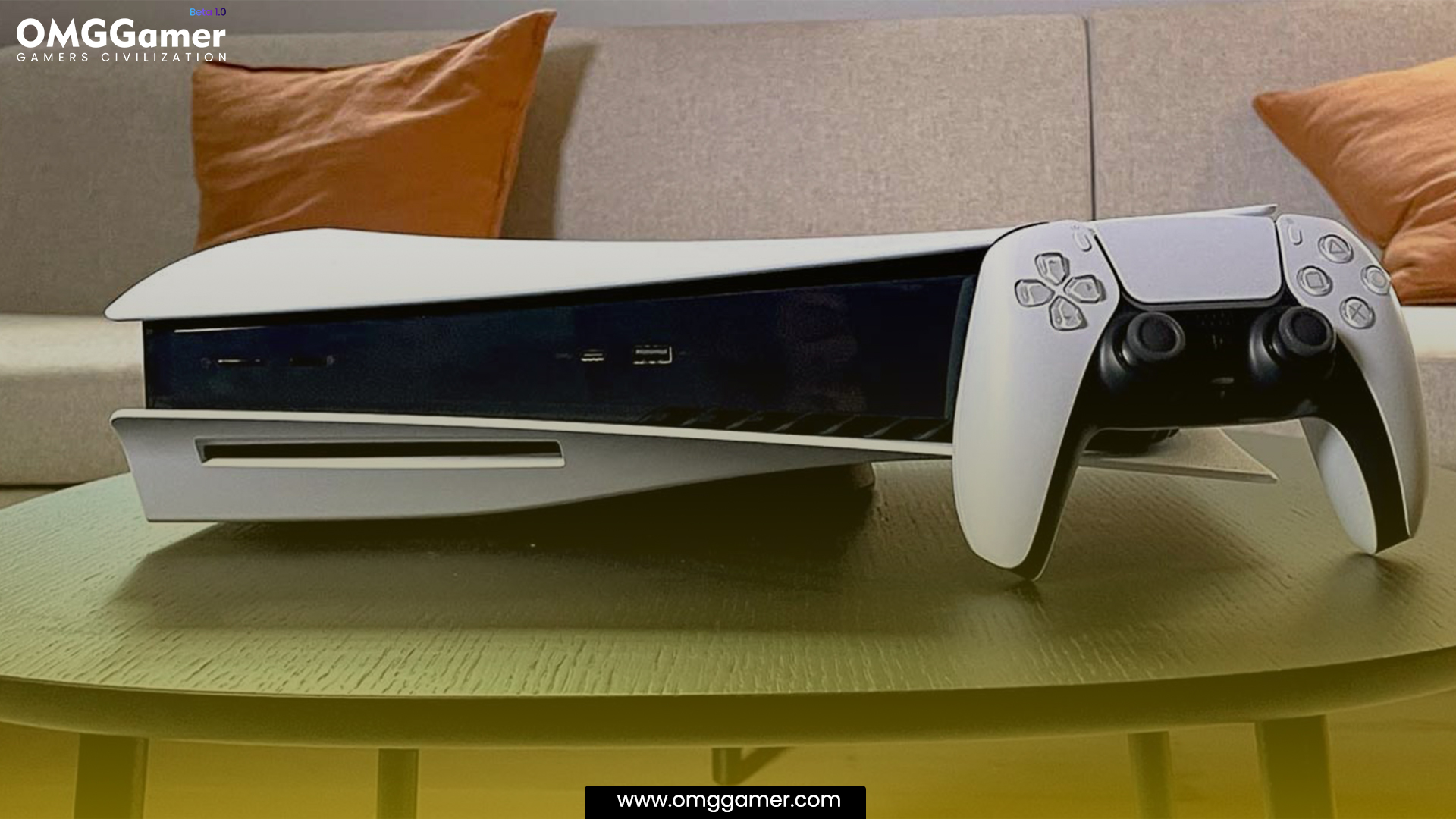
Boot and Fix PS5 in Safe Mode
Try starting the PS5 in Safe Mode to see if the game’s resolution fixes the PS5 Black Screen. This is how:
- Step 1: Completely shut off the power cycle of the PS5, then hold down the power button until you hear two beeps and a second beep.
- Step 2: Use a USB connection to attach a DualSense controller, then choose “Safe Mode” from the menu.
- Step 3: Select “Restart PS5” to determine if the resolution change and black screen problem have been fixed.
- Step 4: Try rebuilding the database or initializing the console if that doesn’t work.
- Step 5: Don’t forget to back up your data before beginning this process.
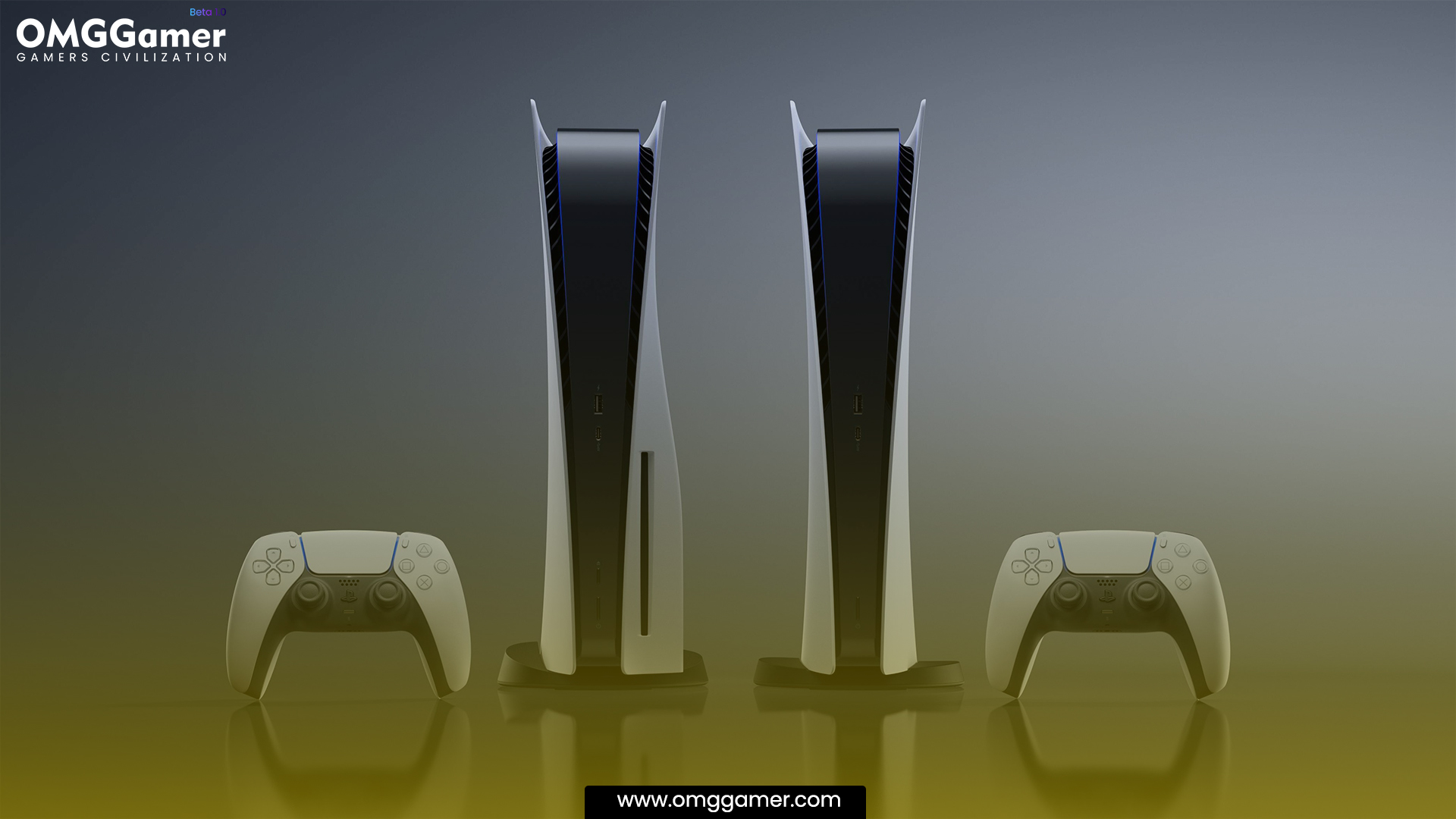
Change PS5 Video Resolution
Adjust the video resolution to see if that helps fix the PS5 Black Screen with the black on-screen problem.
- Step 1: Go to the Settings menu, pick Screen and Video, and then select Video Output to alter the video resolution on your PS5.
- Step 2: Choose your preferred resolution (such as 1080p or 4K) from the list that appears.
- Step 3: Your PS5 will update the video resolution to your choice when you confirm it.
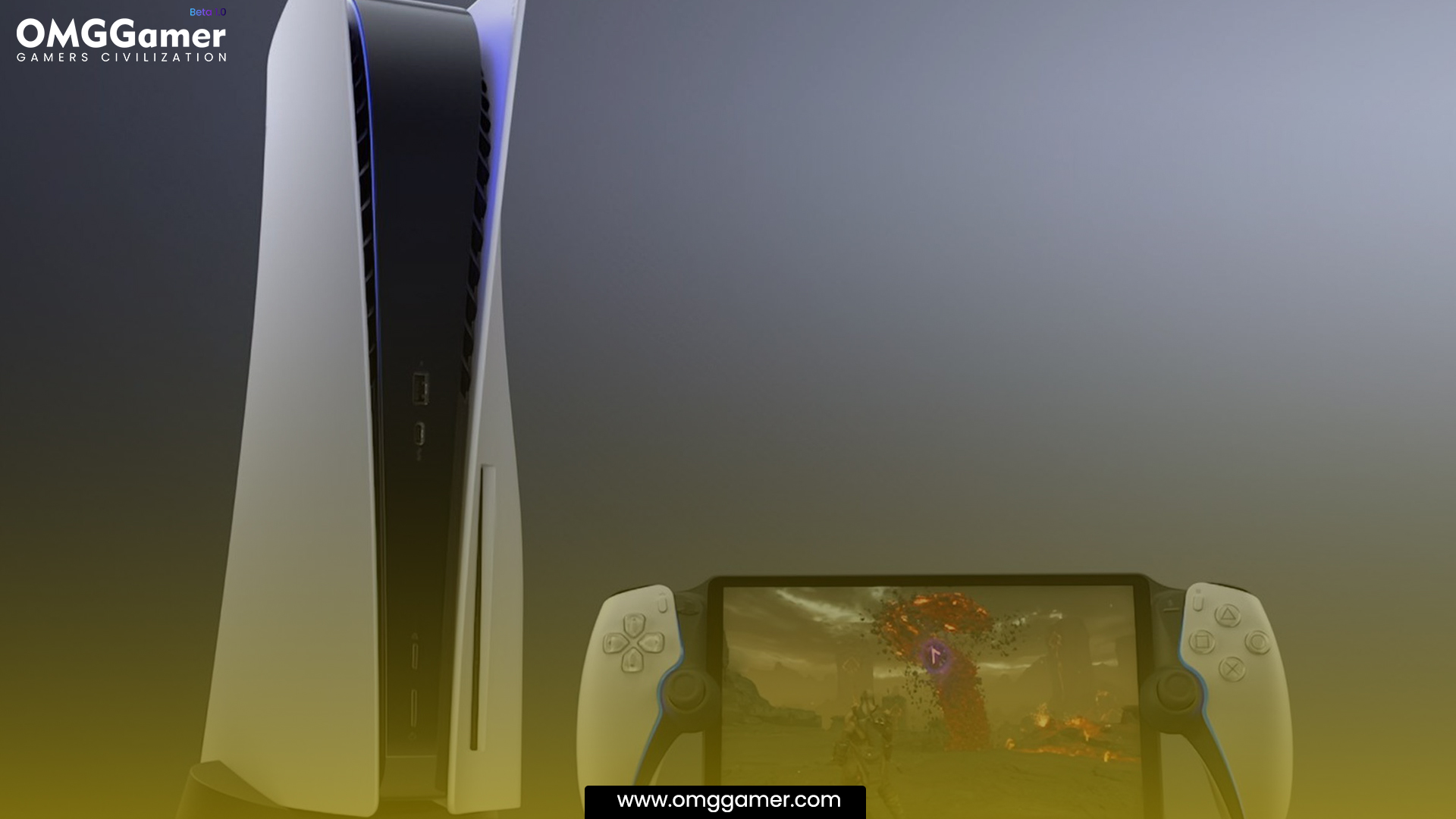
Restore Default Settings in Safe Mode
- Step 1: Hold the power button for roughly seven seconds or until you hear a second beep to enter Safe Mode to fix a PS5 black screen.
- Step 2: Use a third USB cable or cord to connect a controller, then choose “Restore Default Settings.”
Also Read: How To Get 120FPS On PS5 in 2026 [Settings]
This option clears your data without wiping the system settings. Wait a few moments before the procedure finishes before following the power button to rest mode the screen. Check to see whether the black screen problem has been fixed by restarting the PS5.
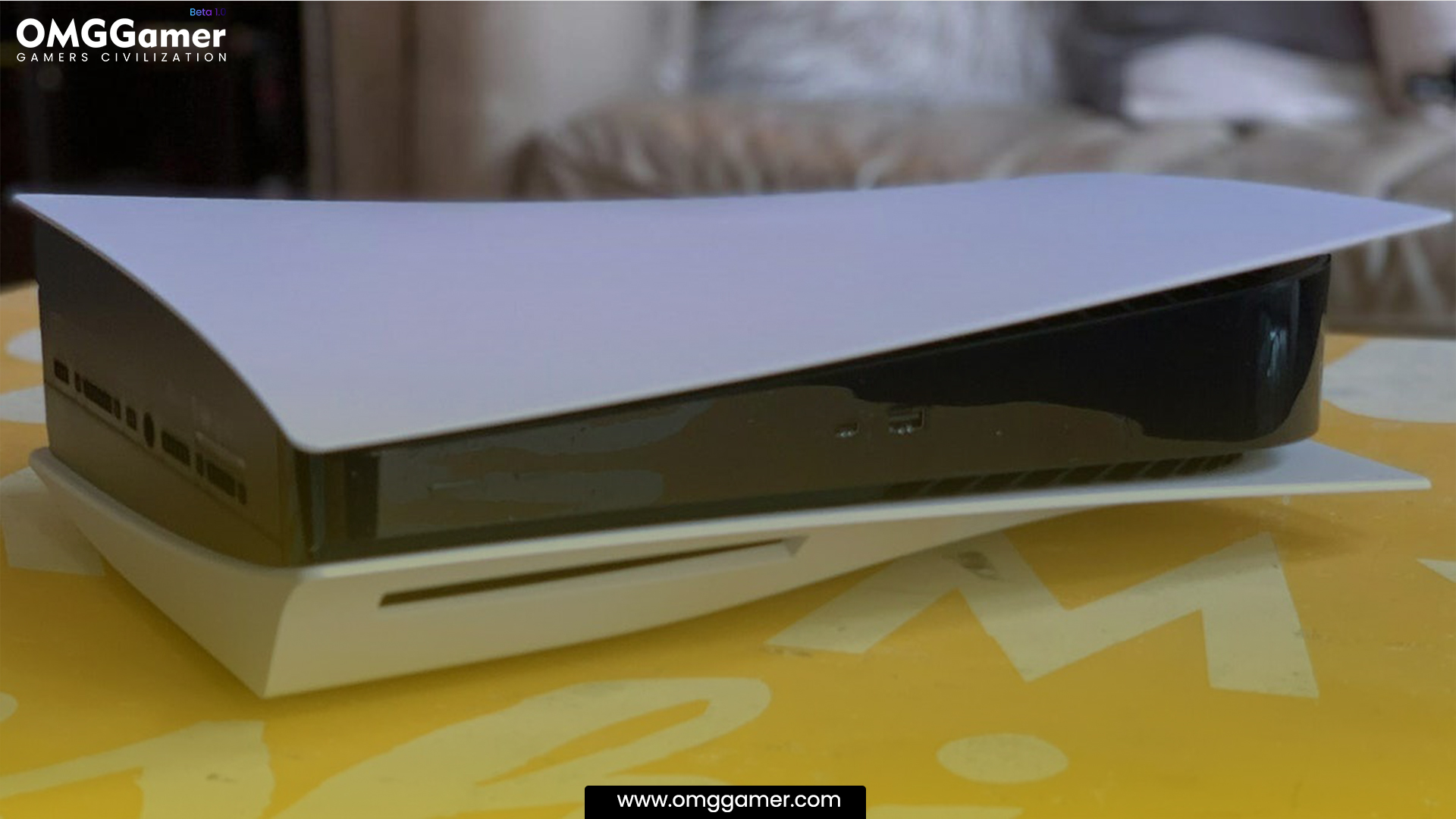
Rebuild the PS5 Database
Rebuild the database to resolve the PS5 Black Screen.
- Step 1: Hold the power button for roughly 7 seconds or until you hear a second beep after completely turning off the power button, and release the power button.
- Step 2: Connect the controller with a third USB cable or cord, then choose “Rebuild Database” from the Safe Mode menu.
- Step 3: The files on your system will be arranged and optimized during this procedure, perhaps fixing the black screen problem.
- Step 4: Keep in mind that it could take some time, so be patient.
Contact Sony Support
It is advised to contact Sony Support for fast assistance if you PS5 Black Screen problem in rest mode.
- Step 1: Visit the Sony Support area of their official website to contact them.
- Step 2: Locate the contact details, typically a phone number or live chat facility.
- Step 3: You November also look for “Sony Support” online to locate their contact information.
- Step 4: Remember to include pertinent details regarding your question or problem for a quicker resolution when contacting them.
So, we hope you enjoyed the article, as now you know how to fix the PS5 Black Screen issue. Also, for more articles on gaming, keep visiting omggamer.com.




Leave a Reply