

Are you facing a problem with your game, or your Xbox One won’t turn on? Well, don’t worry, as many of the users of this console sometimes face this kind of issue. There can be several causes, like internal power supply issues, or you might get random power glitches. To fix this issue by providing various solutions, we are here with another article. So, stick to the whole article to know every solution to fix your Xbox console.
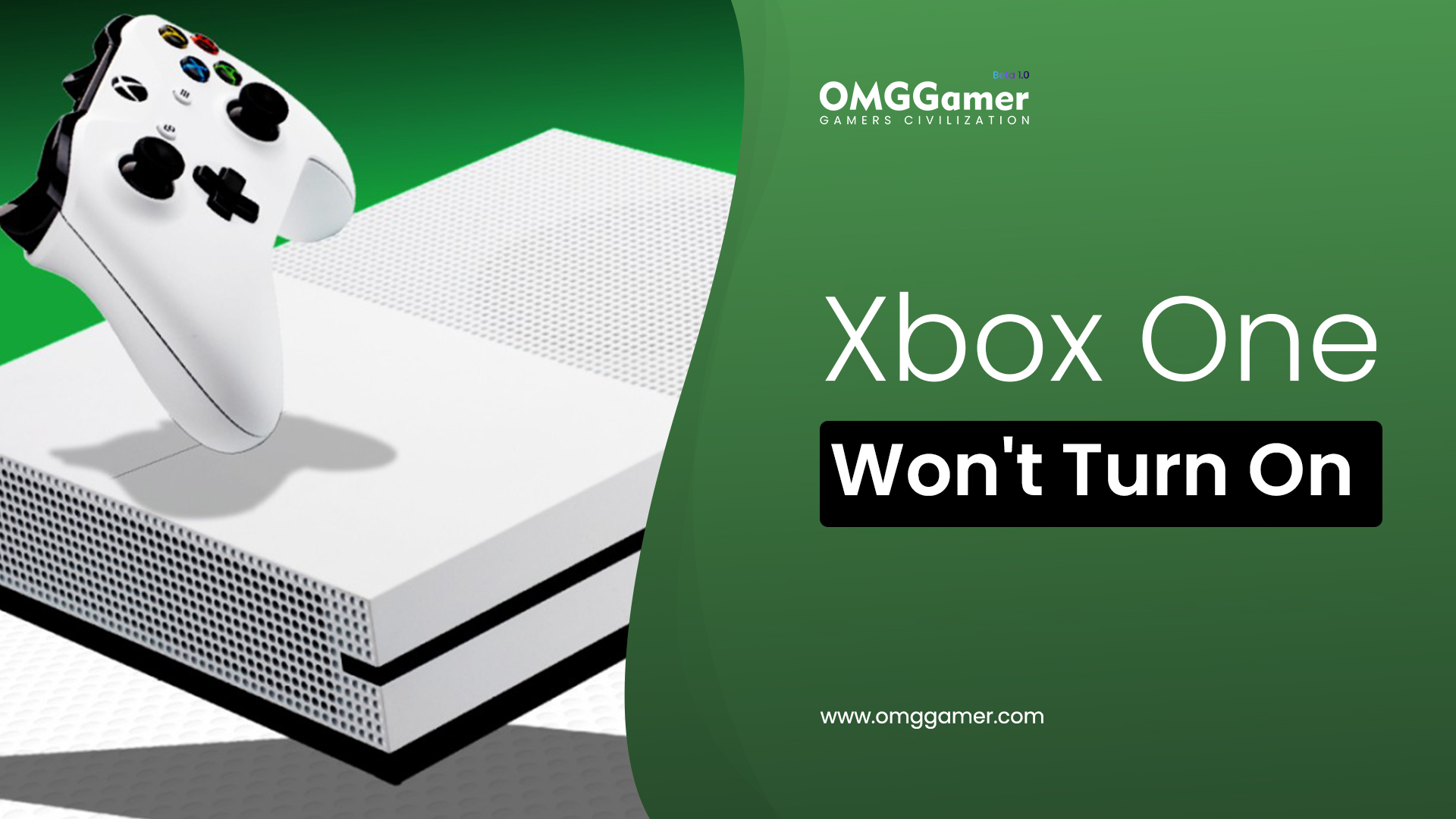
Reasons: Why Xbox One Won’t Turn On
There can be several reasons why your Xbox One won’t turn on, including:
- Power supply light: When there are no lights, there is a power supply issue. Replace or wait 20 minutes, your choice.
- Danged Power outlet: Change the wires on the power button adapter or use a different outlet if the power outlet is damaged.
- Display issues: Issues with the display can be found in HDMI ports and cables.
- Power Surge: Perform a hard reset after a power surge. External surge protectors could interfere with startup.
- Motherboard Failure: Rare motherboard failures necessitate expert repair or replacement.
- Xbox Live Connectivity: During startup, a black screen can appear; try restarting or doing a power cycle.
- Overheating: To avoid damage from overheating, make sure your cooling system is clean and well-ventilated.
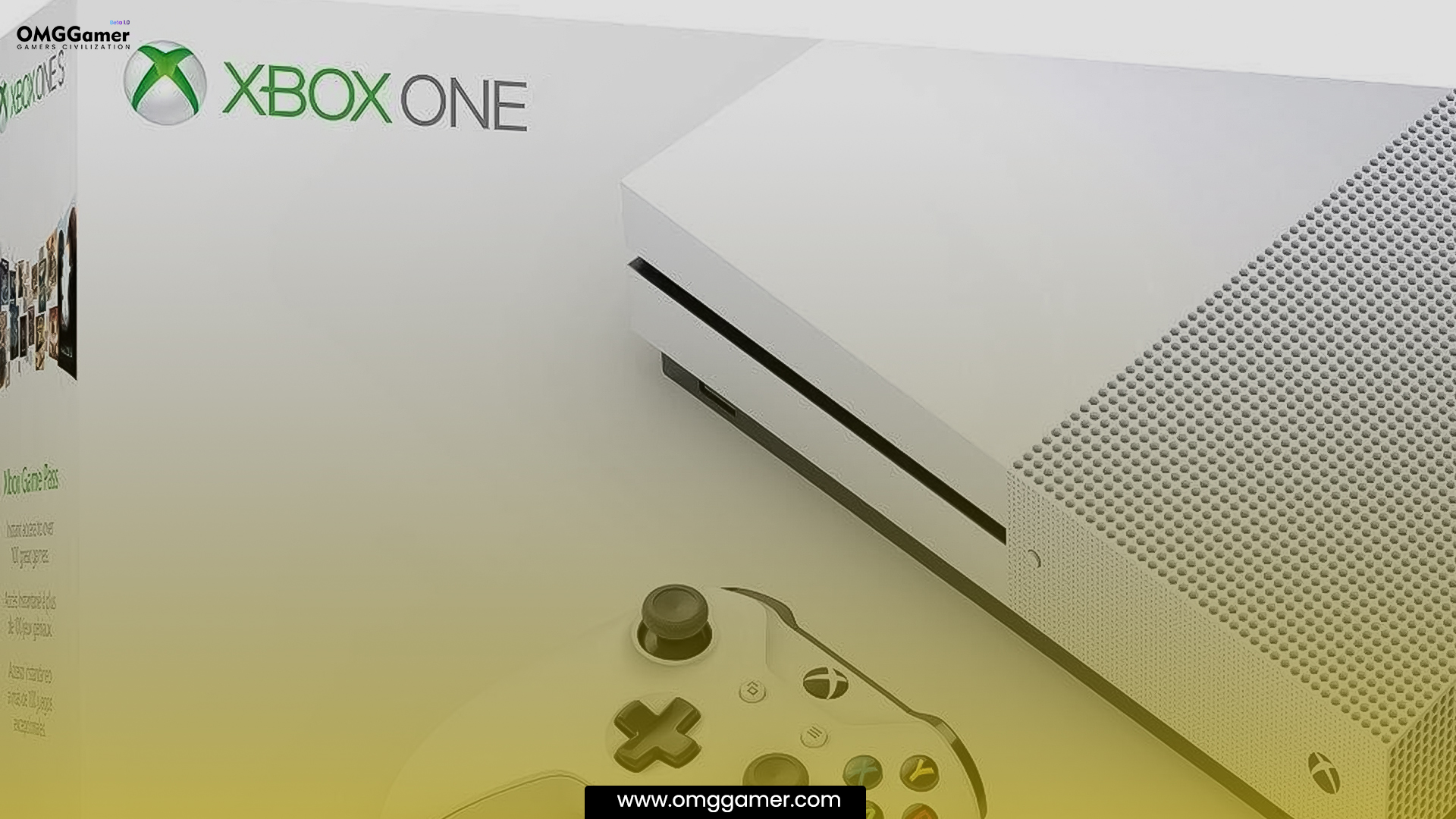
Why Xbox One Beeping, but not turning on?
Typical causes of Xbox one beeping include:
- Step 1: Reset the power supply if it is having problems and check the outlets and power strip.
- Step 2: Unplug, wait, then try again if there is a power spike.
- Step 3: Drops and spills can harm internal components, necessitating replacement or repair due to external damage.
- Step 4: The black screen on Xbox Live is caused by internal issues; try resetting the internet connection; if necessary, contact Microsoft support.
Also Read: How To Get 120FPS On PS5 in 2026 [Settings]
If issues continue, seek expert assistance.
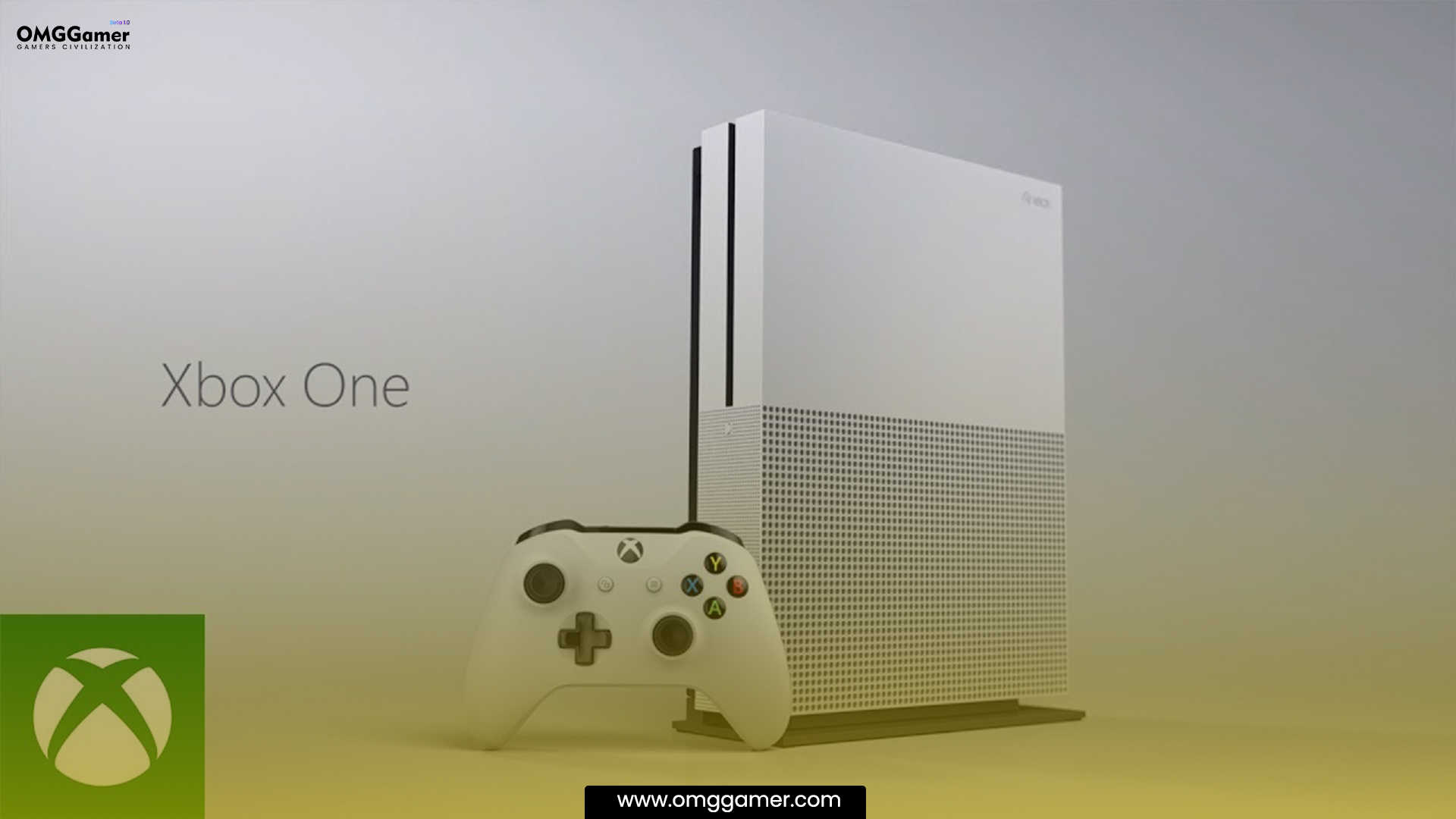
How to Fix Xbox One Won’t Turn On
If you are facing a problem of Xbox one won’t Turn On or Xbox one beeping, then there are system options and some solutions that you can try to fix the issue. So, keep reading as the following fixes will help you to resolve the problem from the depth.
| Xbox One Won’t Turn On: Fixes |
|---|
| Fix 1: Check the Power Cable |
| Fix 2: Change Wall Outlet |
| Fix 3: Ventilate Your Xbox One |
| Fix 4: Change Wall Outlet |
| Fix 5: Ventilate Your Xbox One |
| Fix 6: Button Combination Resets |
| Fix 7: Button Combination Resets |
| Fix 8: Turn Off Instant ON Option |
| Fix 9: Clean Xbox One |
| Fix 10: Power Cycle the Console |
| Fix 11: Talk to Support |
Check the Power Cable
Examine the power cable for damage and tight connections to help solve your Xbox’s power problem. Check the outlet’s functionality and turn off surge protectors. Try an alternative outlet or cable and run a power cycle.
Also Read: How to Reset PS5 Without Controller in 2026 [Guide]
Update firmware, make sure there is adequate ventilation, and inspect the power supply unit if the issue still exists. If all else fails, ask for help from Xbox Support. A seamless gameplay experience is ensured by doing these actions.
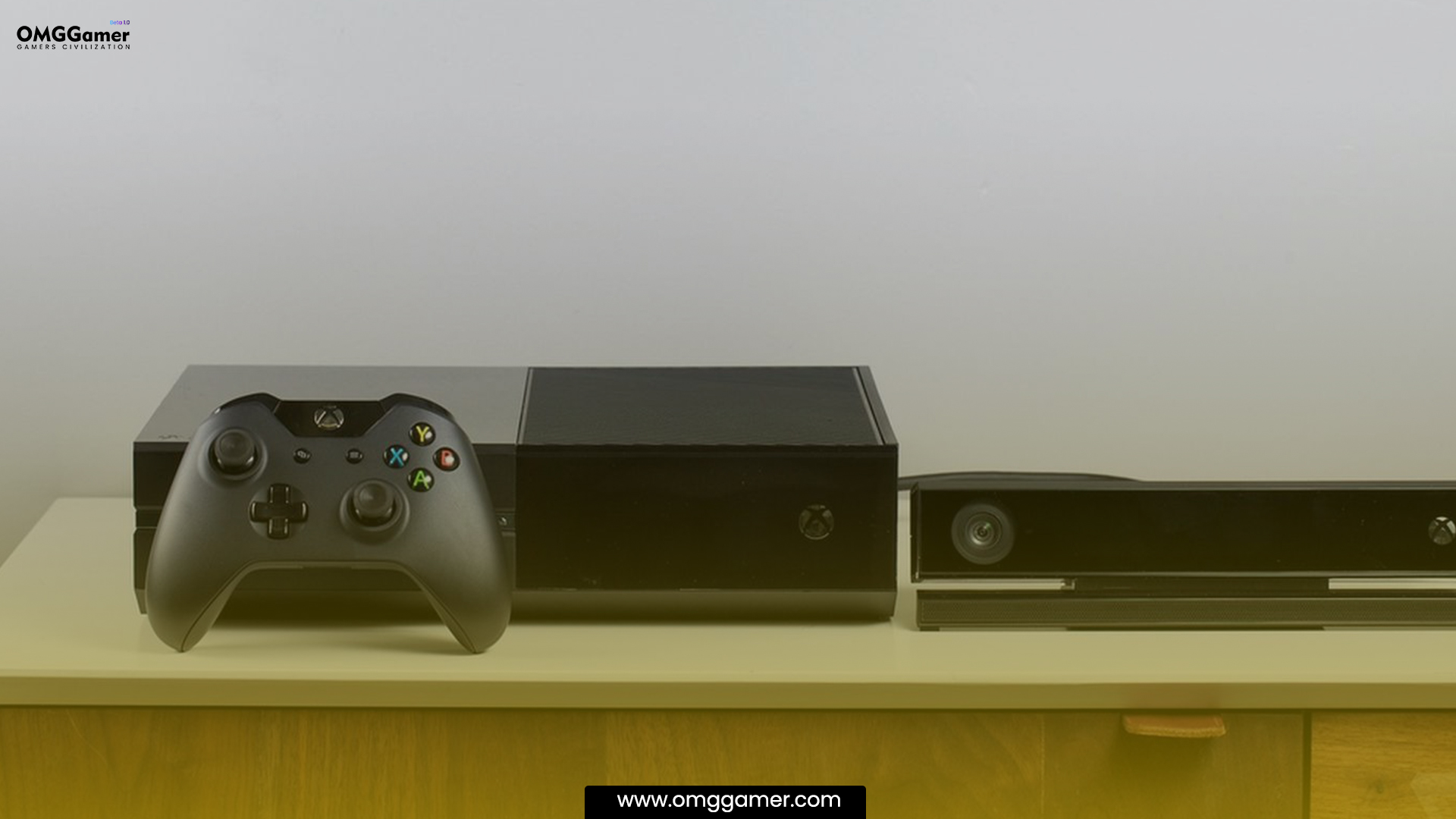
Change Wall Outlet
A wall outlet needs to be changed often to ensure the performance and security of electrical equipment like your Xbox.
- Step 1: Put safety first by cutting off the power, checking the voltage, and assembling the tools.
- Step 2: After removing the old outlet and cutting the wires, carefully install the new outlet.
- Step 3: After properly securing it, test it by turning on the power again and connecting a device.
- Step 4: If unsure, speak with a licensed electrician for work that is both safe and efficient. To avoid mishaps and property damage, electrical work requires caution and knowledge.
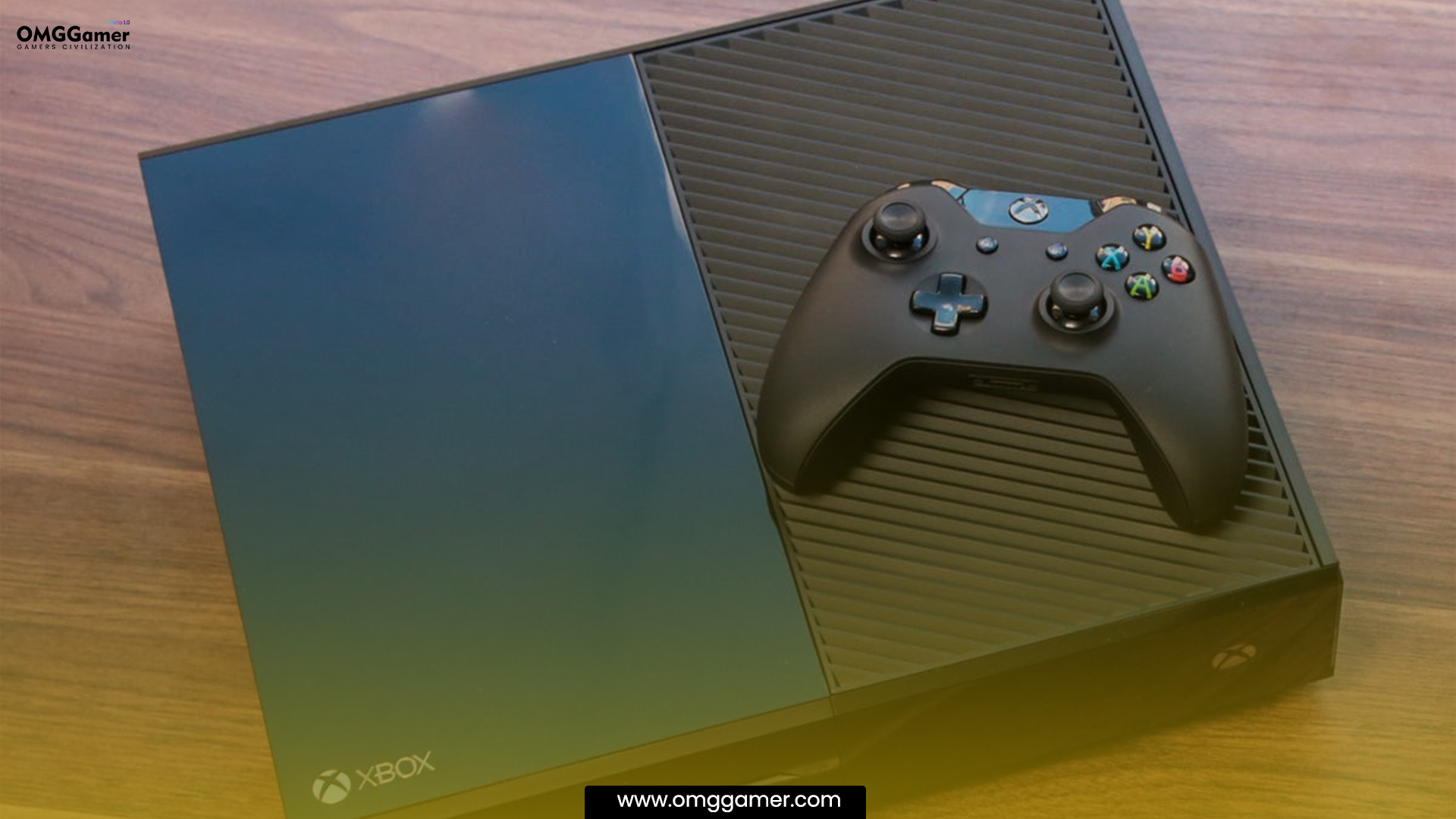
Ventilate Your Xbox One
For durability and performance, your Xbox One must be ventilated properly.
- Step 1: Shutdowns and irreparable damage to internal components can result from overheating.
- Step 2: Keep the console in a room with plenty of space and away from barriers.
- Step 3: After use, please turn it off, and take breaks when playing for extended periods.
- Step 4: Use a brush to clean the vents on a regular basis.
For prolonged use, keep an eye on the temperature and think about external cooling options.
Recommended: 15 Best PS5 Third Person Games in 2026 [Gamers Choice]
These actions guarantee a cool and effective Xbox One, lowering the risk of overheating and increasing its longevity for a pleasurable gaming experience.
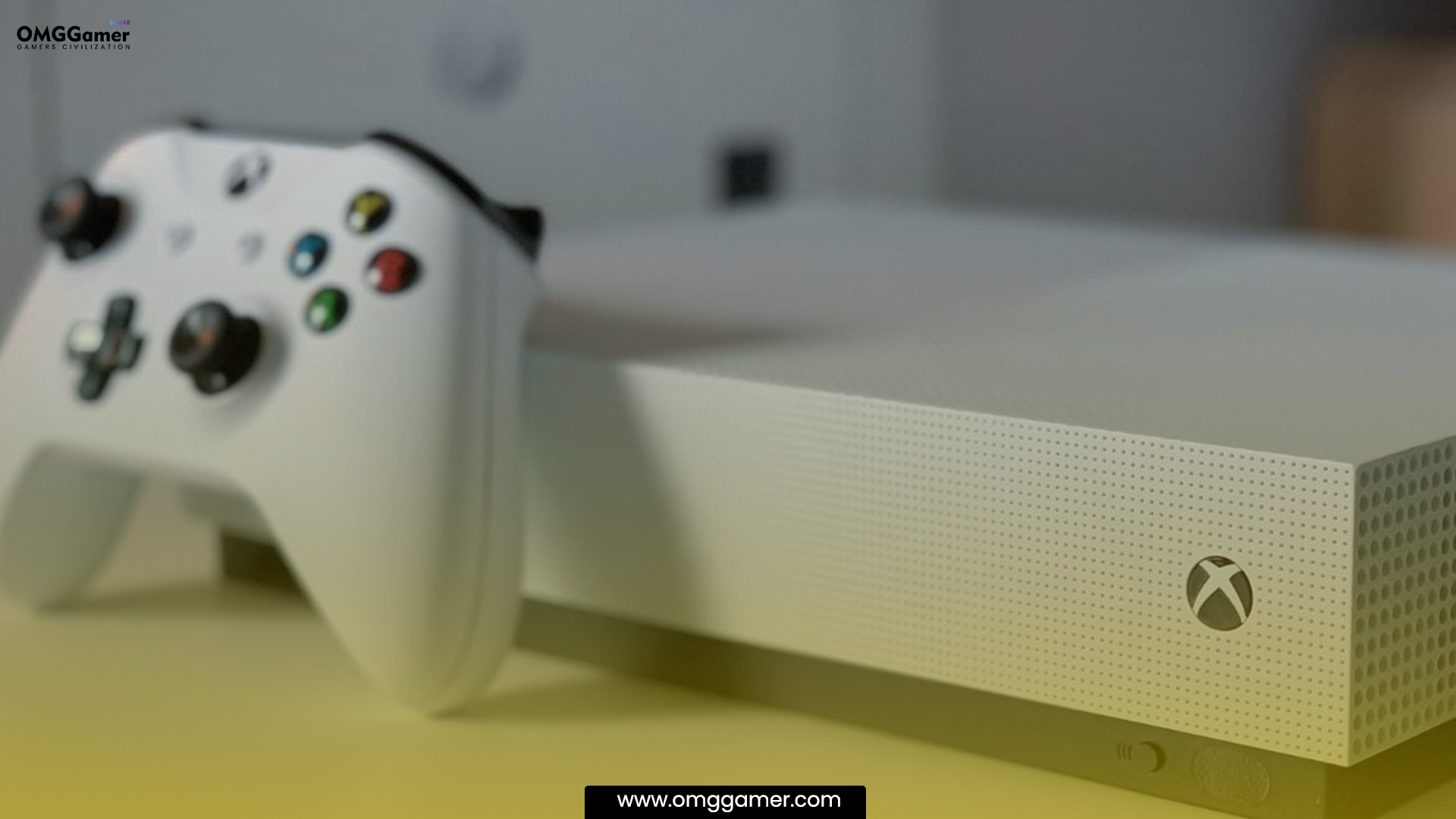
To do a hard reset, particular button presses are required.
- Step 1: Press the sync, eject, and power buttons simultaneously, and wait, release, eject, wait, and release sync and power after turning off the console.
- Step 2: Second, continually click the eject button to get the computer’s attention.
- Step 3: Warning: Data loss November occur after resets.
Related: How To Game Share Xbox in 2026 [Xbox Series X & Xbox One]
If problems continue, get in touch with Xbox support, as different models and software versions November produce varied outcomes.
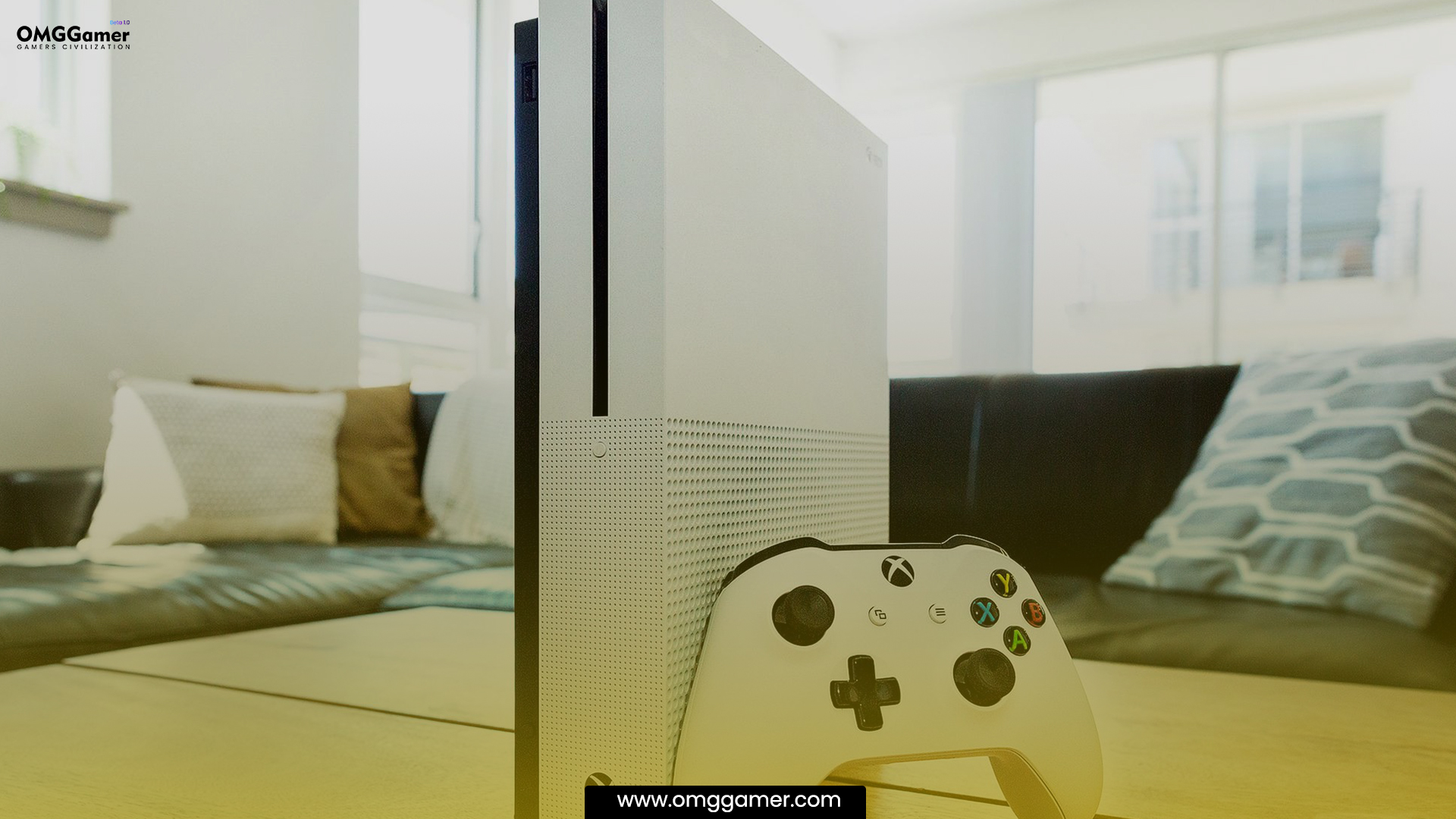
Turn Off Instant ON Option
Follow these steps to fix Xbox One won’t Turn On issue :
- Step 1: Turn on the Xbox by pressing the Xbox button.
- Step 2: Go to “Settings,” select “General,” “Power mode & start-up,” “Energy-saving” mode, set “Turn Xbox off after” to “Never,” and make adjustments.
- Step 3: The energy-saving mode takes slower to start but reduces power consumption.
Suggested: [SOLVED] Fix Roblox Error Code 103 On Xbox One in 2026
If problems continue, speak with Xbox support or seek assistance from troubleshooting resources.
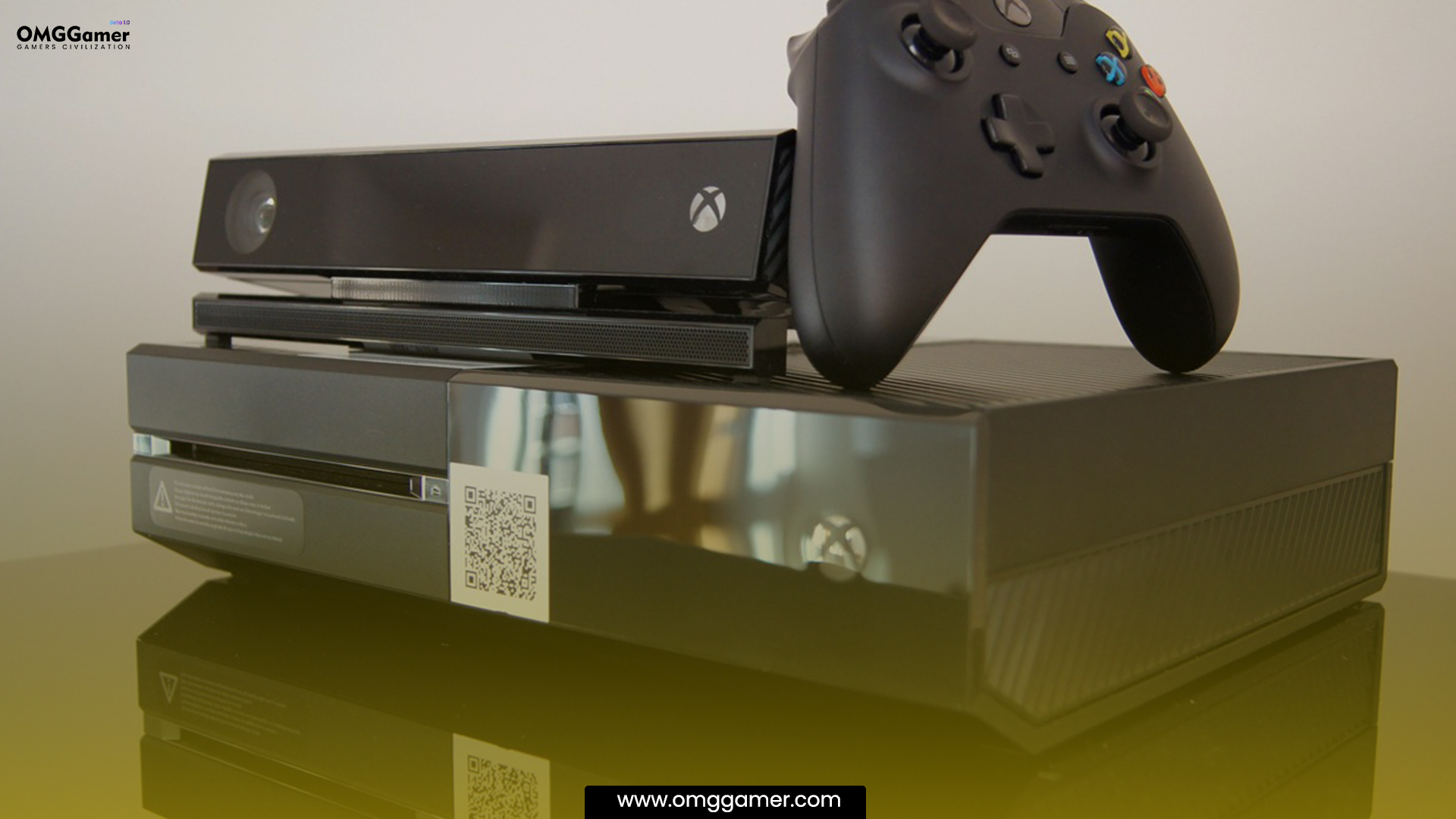
Clean Xbox One
For optimal performance and durability, the Xbox has to be cleaned.
- Step 1: Turn off the console’s power, remove all cords, use a soft brush to clean the vents and ports, compressed air to get rid of any lingering dirt.
- Step 2: Damp a microfiber towel to wipe down the surface.
- Step 3: Avert directly by spraying liquids on it.
- Step 4: After cleaning, firmly reconnect the cords.
Must Read: Best Gaming Chairs for Xbox One in 2026 [Gamers Choice]
A smooth gaming experience is ensured by routine cleaning, which also shows how much you love your system.
Power Cycle the Console
Power-cycling the Xbox One is a typical solution when the Xbox One won’t turn on. Take these actions:
- Step 1: Completely turn off the console.
- Step 2: Disconnect all of the power and accessory cables. Allow any remaining power to drain for 15 seconds.
- Step 3: Press and hold the power button to release any stored energy.
- Step 4: Decrease the console’s temperature for 40 minutes to prevent possible overheating problems.
- Step 5: Reattach the cords to another power outlet.
Turn on the console to see if the issue has been fixed. If not, look for additional troubleshooting or expert assistance. Future startup problems can be avoided by performing routine maintenance and sufficient ventilation.
Talk to Support
If Still, your Xbox One won’t Turn On then, For accurate information, consult the officials.
Frequently Asked Questions
FAQ 1: How to Fix an Xbox One That Won’t Turn on But Beeps?
Answer: Follow these instructions:
- Step 1: To prevent interference, turn off any connected devices first.
- Step 2: Press the power and sync buttons to perform a soft reset.
- Step 3: Additionally, the Xbox might come out of sleep mode if a game disc is inserted.
- Step 4: Check power connections and utilize a surge protector if the problem continues.
Look for assistance with challenging issues.
FAQ 2: How do I fix my Xbox One when it has no power?
Answer: Check the power source, reset the power cord and supply, and wait for surge protection to fix a powerless Xbox One. Check the new console for damage or overheating, check with a different cable, and confirm the power brick indicator light. The last resort is a factory reset. Get in touch with Xbox support or look for outside help if the problem continues.
We hope that the above solutions will help you to fix “Xbox One won’t turn on”; if it does, then do share it with your friends. And for more articles like this, keep visiting omggamer.com.



Leave a Reply